Keep your name on display all year long!
How do I import contacts?
1. First, make sure your contact list is saved in one of the following file formats.
2. From "My Address Book," click on Import Contacts. In Step 1: Select Groups, you will have the option of selecting groups (what is a group?) or you can go directly to Step 2: Import Click browse and select your contact file. Then click Upload.
3. This is what you'll see:
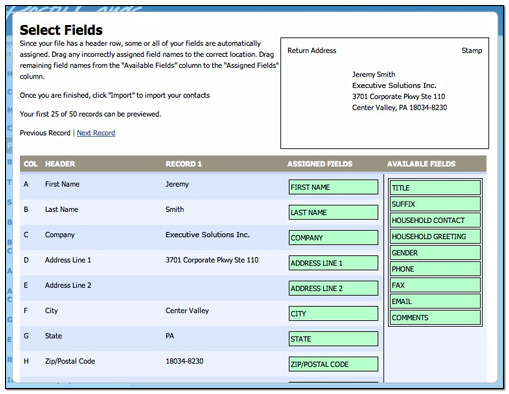
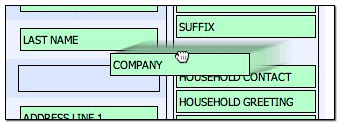
Check the Assigned Fields column to make sure they are correct. For any that are incorrectly assigned or not assigned at all, you will need to click on the correct field in the Available Fields column, then hold your mouse down and drag to the correct Assigned Field.
You'll see a preview of your first contact in the envelope in the upper right hand corner, just to make sure that your fields have been correctly assigned.
4. Click Import. When the import is complete, you will see the Import Status screen.
Sometimes an address may fail to import. If you click on View Errors, a drop down box will appear that will tell you what the problem was. You will have the option to download a CSV file of the addresses that failed to import. You can then make changes, save the file to your computer and import it again, following the steps detailed above.
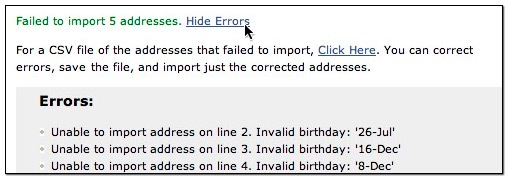
If you don’t have any errors, you can import another file or view your imported contacts. That’s all there is to it!
How do I add an individual contact?
This option will be useful if you have 1 or 2 new contacts that you want to add to your address book without importing a new file. From “My Address Book,” click on Add Contact.

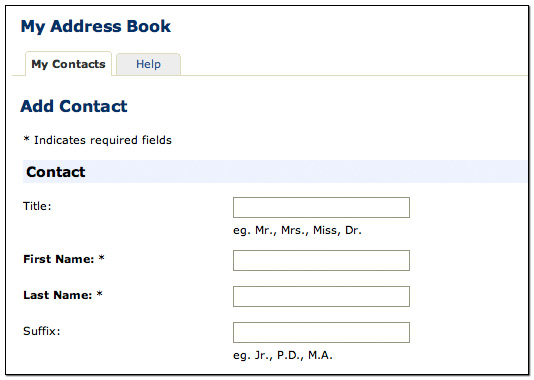
You’ll be able to type in all of their information and even add them directly to 1 or more contact groups (what is a contact group?). When you are finished, click Save to add the contact to your address book.
What is a primary household contact?
In many cases when sending large mailings, you will not want everyone on your list to receive a card. You may have multiple family members living in the same household. For example, you may want to send a holiday card to each household on your list, and not each individual contact. The Primary Household Contact will allow you to designate one member of each household to receive the mailing for the group. Each Primary Household Contact is recognized with the graphic of a house next to his/her name.

What is a household greeting?
A household greeting can be used if you want to send a card to a family instead of one person. For example, you will send a birthday card to John Kauffman, but you may want to send a holiday card to The Kauffman Family.
To add a household greeting to an individual contact, click Edit next to their name. Then check the box for Primary Household Contact and type the Household Greeting in the space provided. This is what will be printed on the envelope when the card is sent.
In order to use this name, select the box next to Primary Household Contact when adding the contact to your address book or editing an individual contact. Then when shopping for and personalizing an item, select the option “Use Household Greeting” and we will print the household greeting information instead of the contact's name. If the Household Greeting field is blank, we will use the contact's Title, First and Last Name and Suffix fields instead.

How do I update an individual contact?
To update an individual contact, click Edit next to that person’s name in your Address Book. Make any necessary changes and click Save.

How do I search for contacts?
From the My Contacts tab, click on Find/Select Contacts. Search for contacts by entering information into the appropriate search field(s.) The fields are combinable and you can search using the keyword field or any combination of the existing search options. Click on 'Find Contact Matches' to begin the search. Do not include spaces in the keyword search field.
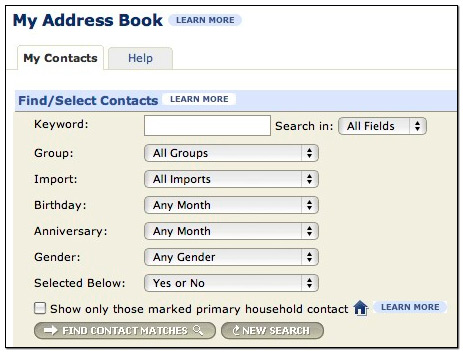
Results are shown below the search fields, and you will have the option to Select All Matches.
How do I delete an individual contact?
To delete an individual contact, click Delete next to that person’s name in your Address Book. A box will appear asking if you are sure. Click OK to delete the contact.

How do I delete multiple contacts?
First, find and select the contacts you want to delete. (See "How do I search for contacts")
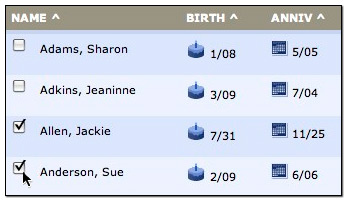
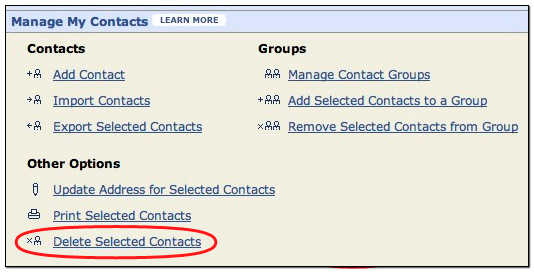
Then, under Manage My Contacts, click on Delete Selected Contacts. A box will appear asking if you are sure. Click OK to delete the contacts.
How do I export my contact list?
First, find and select the contacts you want to export. (See "How do I search for contacts")
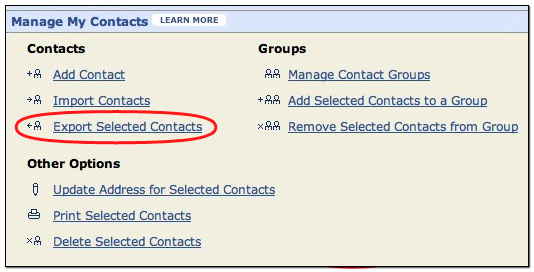
Then, under Manage My Contacts, click on Export Selected Contacts.
What is a contact group?
You can create different groups within your Address Book to help organize your contact list. This is a very useful feature if you like to send different cards to different contacts. For example, you may choose to put your contacts into Male and Female contact groups. Then, you can easily select a feminine card for the females and a masculine card for the males. Or, you may like to send a more expensive card to your “A” clients than your “B” clients. The possibilities are endless. You can create an unlimited number of contact groups and each contact can be in more than one group.
IMAGEHERE
Why do I have contact groups already in my address book?
We started you off with commonly used groups: Men, Women, Children, A Clients and B Clients. All groups are empty and have no contacts until you add them. If you want a group that does not appear on the list, it is easy to add one. (See "How do I create a new contact group?")
How do I create a new contact group?
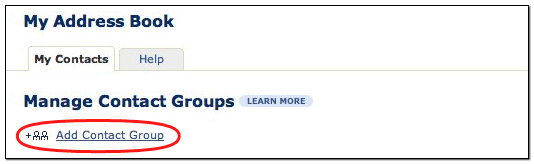
To add a new contact group, click on Manage My Contacts and then Manage Contact Groups.
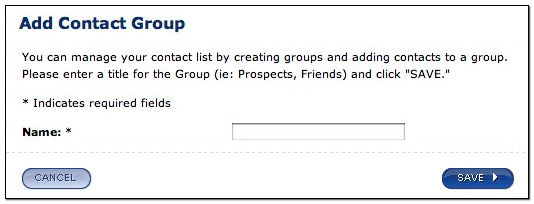
Next, name your group and click Save.
Now, you are ready to add contacts to your new group. (link to question below, How do I select contacts to add to a contact group?)
Can a contact be in more than one contact group?
Yes, a contact can belong to multiple groups. For example one of your contacts may be in the Male contact group as well as the A Clients contact group.
How do I add an individual to a contact group?
To add an individual contact to a contact group, click Edit next to that person’s name in your Address Book.
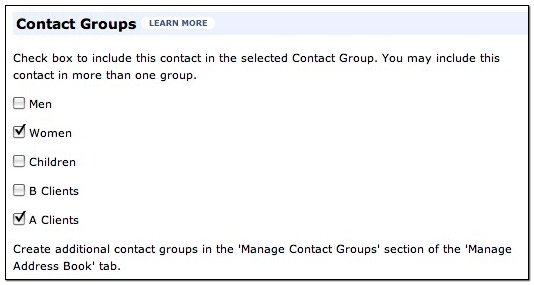
Then, scroll down to the Contact Groups section. Check the box(es) of the group(s) you want the contact to be in and click Save.
How do I add multiple contacts to a contact group?
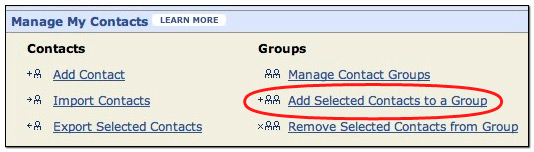
You can select multiple contacts (See "How do I search for contacts") and move them into the desired group by going to “Manage My Contacts” and clicking “Add selected contacts to a group.”
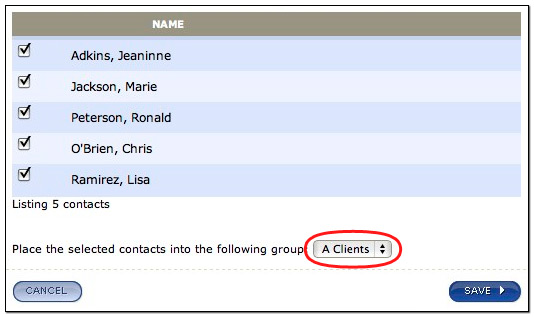
Select the contact group from the drop down menu and click Save.
How do I remove contacts from a group?
You can remove contacts from a group by selecting the desired contacts (See "How do I search for contacts?"), going to “Manage My Contacts” and clicking “Remove selected contacts from group.”
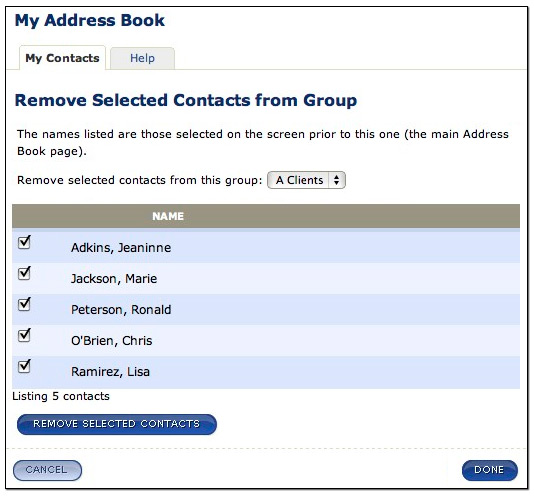
Select the contact group from the drop down menu and click Done.

© 2026 Posty Cards. All rights reserved.